
Annotations and Selection
Number Selected
Write sequential values into a chosen parameter by click order or along selected lines.
When to use it
Use this for parking stalls, rooms, doors, windows, or any elements that should number in a path instead of by creation order.
Why it exists
Manual Marks drift. This tool locks the parameter, the match rule (category / family / type), and the order - click sequence or along a line.
How to use it
-
Open Number Selected
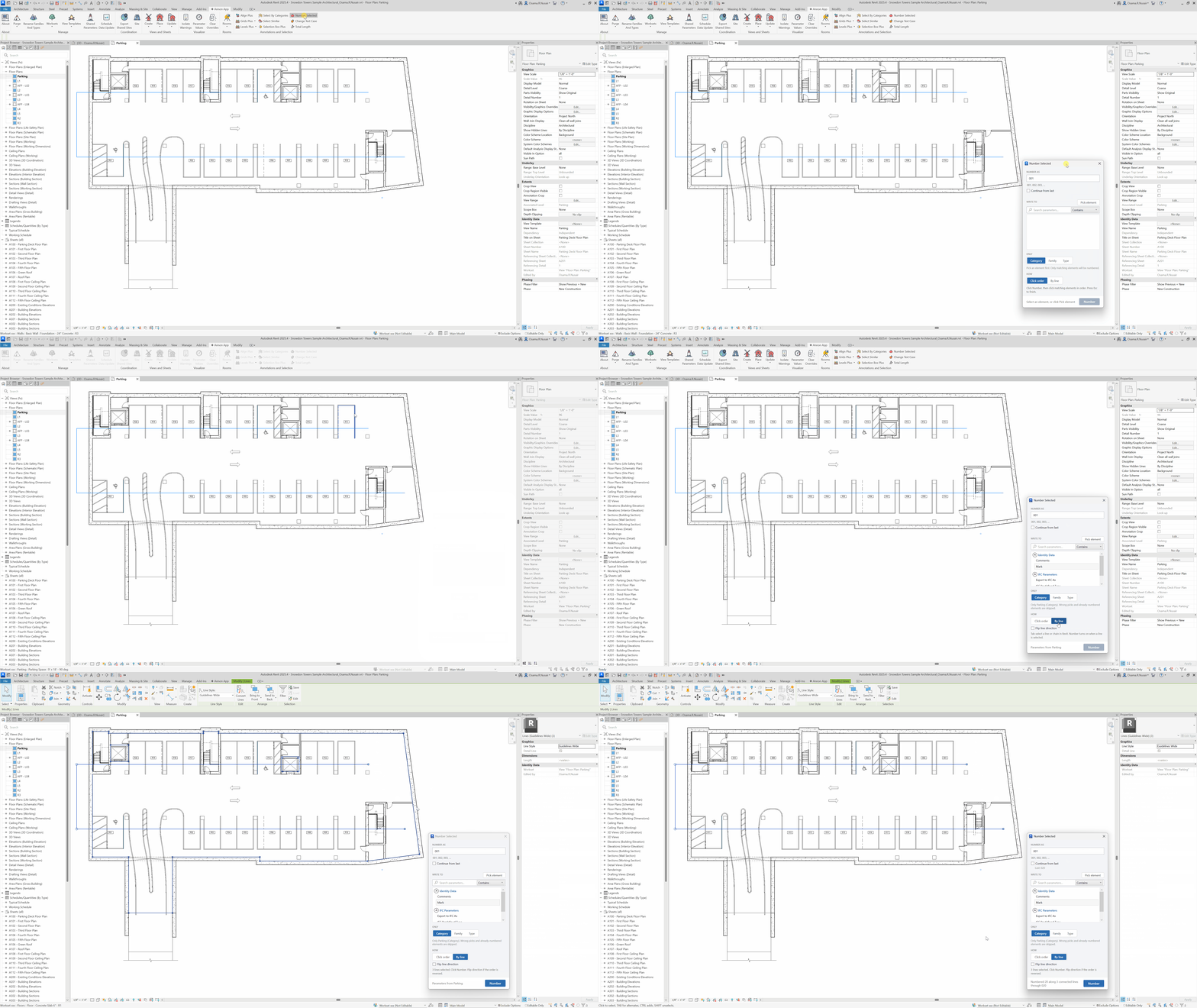
On the ✚ Annon App tab, click Number Selected.
-
Pick a sample
Click one element, then choose the parameter to write (often Mark).
-
Set the match rule
Only elements matching Category, Family, or Type will accept a number.
-
Choose how
Click order - click elements in sequence. By line - Tab-select lines, optionally flip direction. Enable Continue from last to keep an existing sequence going.
-
Number
Click Number, then click elements (or follow the line). Press Esc when finished.
Keep in mind
- Preselect nothing critical - the sample pick drives the parameter list.
- For sheet numbers, use Revalue Sheets instead.
Related tools
 Select Similar
Select elements that match a picked sample by category, family, or type, in this view or the entire project.
Select Similar
Select elements that match a picked sample by category, family, or type, in this view or the entire project.
 Change Text Case
Change the case of selected text notes and optionally clean spaces and line breaks.
Change Text Case
Change the case of selected text notes and optionally clean spaces and line breaks.
 Revalue Sheets
Batch update sheet numbers, names, and other sheet parameters from an editable grid.
Revalue Sheets
Batch update sheet numbers, names, and other sheet parameters from an editable grid.