
Annotations and Selection
Change Text Case
Change the case of selected text notes and optionally clean spaces and line breaks.
When to use it
Use this on sheets and drafted views when text notes mixed sentence case, ALL CAPS, and extra blank lines.
Why it exists
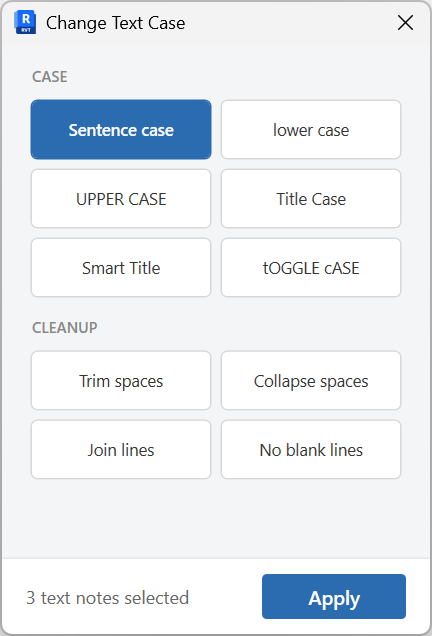
Revit text has no case command. This one covers Sentence, lower, UPPER, Title, Smart Title, tOGGLE cASE, plus trim, collapse spaces, join lines, and no blank lines.
How to use it
-
Select text notes
Select the notes in the active view.
-
Open Change Text Case
On the ✚ Annon App tab, click Change Text Case.
-
Choose case and cleanup
Pick the case operation. Optionally trim spaces, collapse spaces, join lines, or remove blank lines.
-
Apply
Rewrite the selected notes.
Keep in mind
- This is for text notes, not tags or dimension text.
- Align the cleaned notes afterward with Align Plus if needed.

