
Views and Sheets · Update
Rename Views
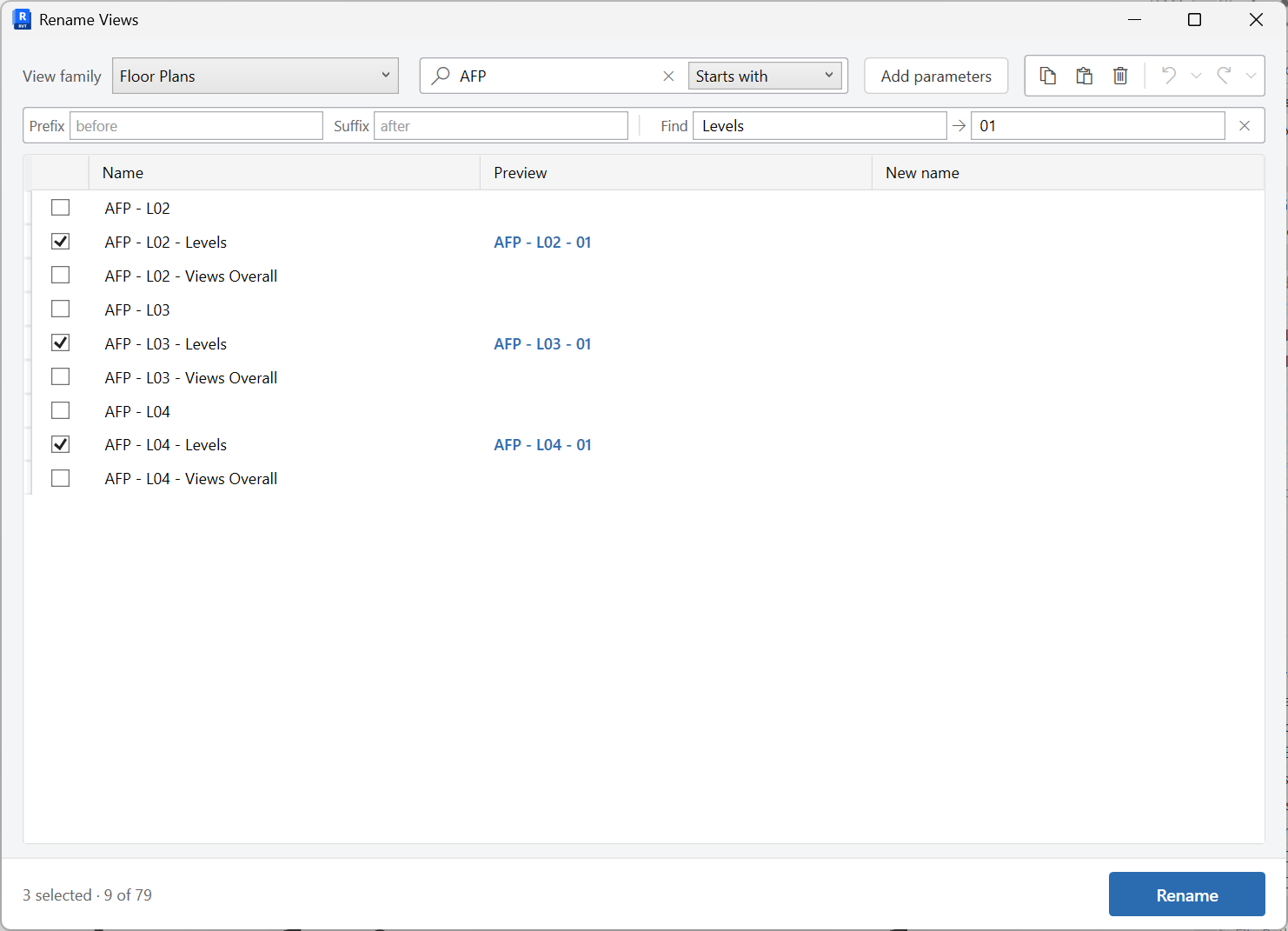
Batch rename views in an editable grid, with optional parameter columns for reference.
When to use it
Use this when view names must match a naming standard, or when a batch of new views needs a consistent prefix, level code, or discipline tag.
Why it exists
The Project Browser is a bad spreadsheet. Duplicate names inside a view family type show up here before Revit rejects them.
How to use it
-
Open Rename Views
On the ✚ Annon App tab, open Update and choose Rename Views.
-
Add parameter columns if needed
Bring in parameters for reference while you edit names.
-
Edit new names
Search, type, or paste. Duplicate names within a view family type are flagged.
-
Rename
Apply the new names to the selected rows.
Keep in mind
- This renames views, not view templates - use Rename View Templates for those.
- Sheet names and numbers are updated with Revalue Sheets.


