
Manage · View Templates
Transfer Between Projects
Copy view templates from one open Revit project into another.
When to use it
Use this when starting a project from a file that is missing the office templates, or when a standards model should push templates into an active job.
Why it exists
Revit’s Transfer Project Standards copies more than you asked for. This tool moves only the view templates you pick.
How to use it
-
Open both projects
The source and destination must both be open in the same Revit session.
-
Open the tool
On the ✚ Annon App tab, open View Templates and choose Transfer Between Projects.
-
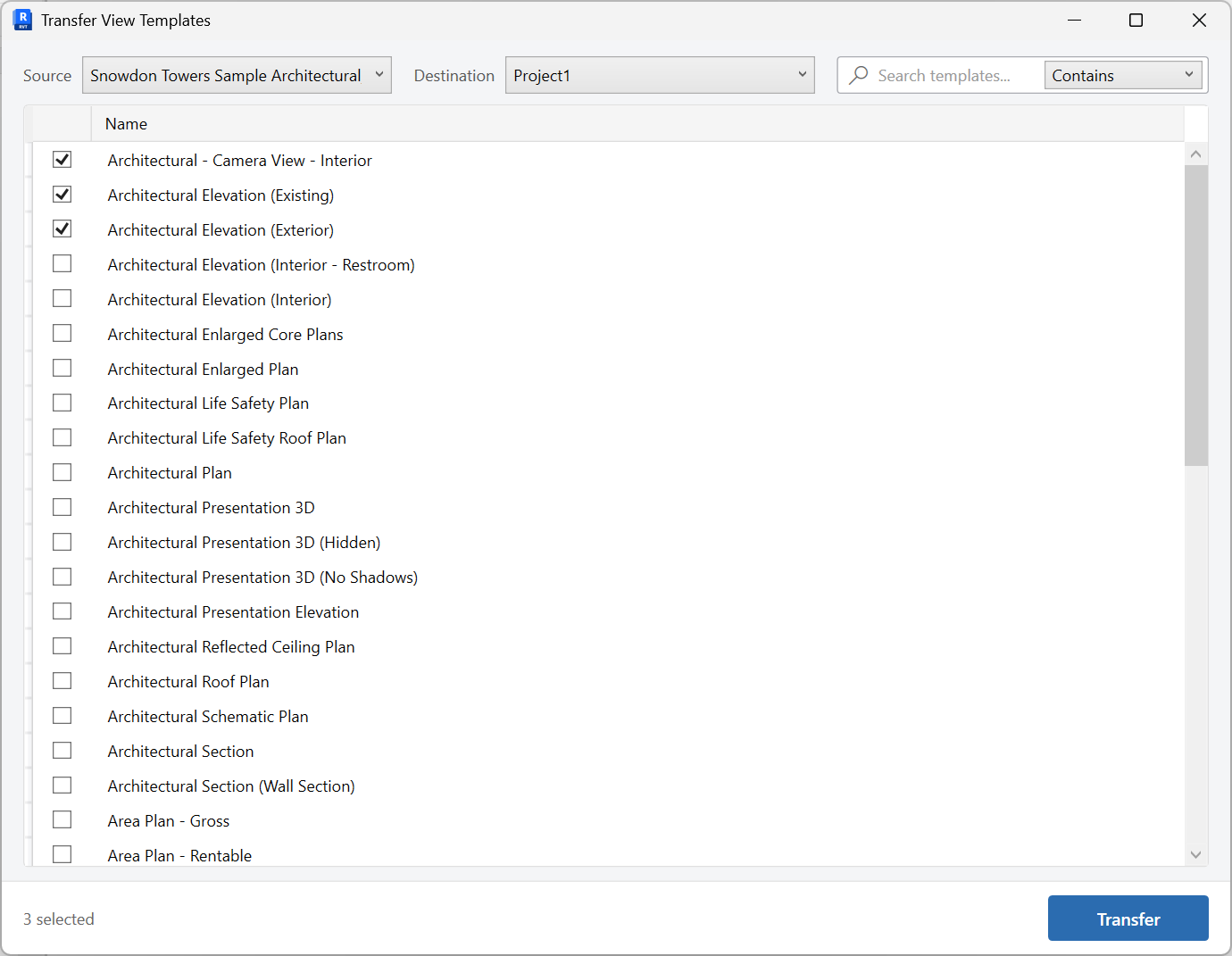
Pick source and templates
Choose the source project, then check the templates to copy.
-
Transfer
Copy them into the current project. Rename or assign them next if names collide with local standards.
Keep in mind
- After a transfer, purge unused templates with Purge View Setup if extras came along from an older standards file.
- Assign the new templates to views with Assign View Templates.


