
Manage · View Templates
Assign View Templates
Assign view templates to views by view type, then apply in bulk.
When to use it
Use this after creating a batch of views, after a template transfer, or when a project’s views drifted off the standard template.
Why it exists
Clicking each view in the browser to set a template is how drawing sets quietly go off-standard.
How to use it
-
Open Assign View Templates
On the ✚ Annon App tab, open View Templates and choose Assign View Templates.
-
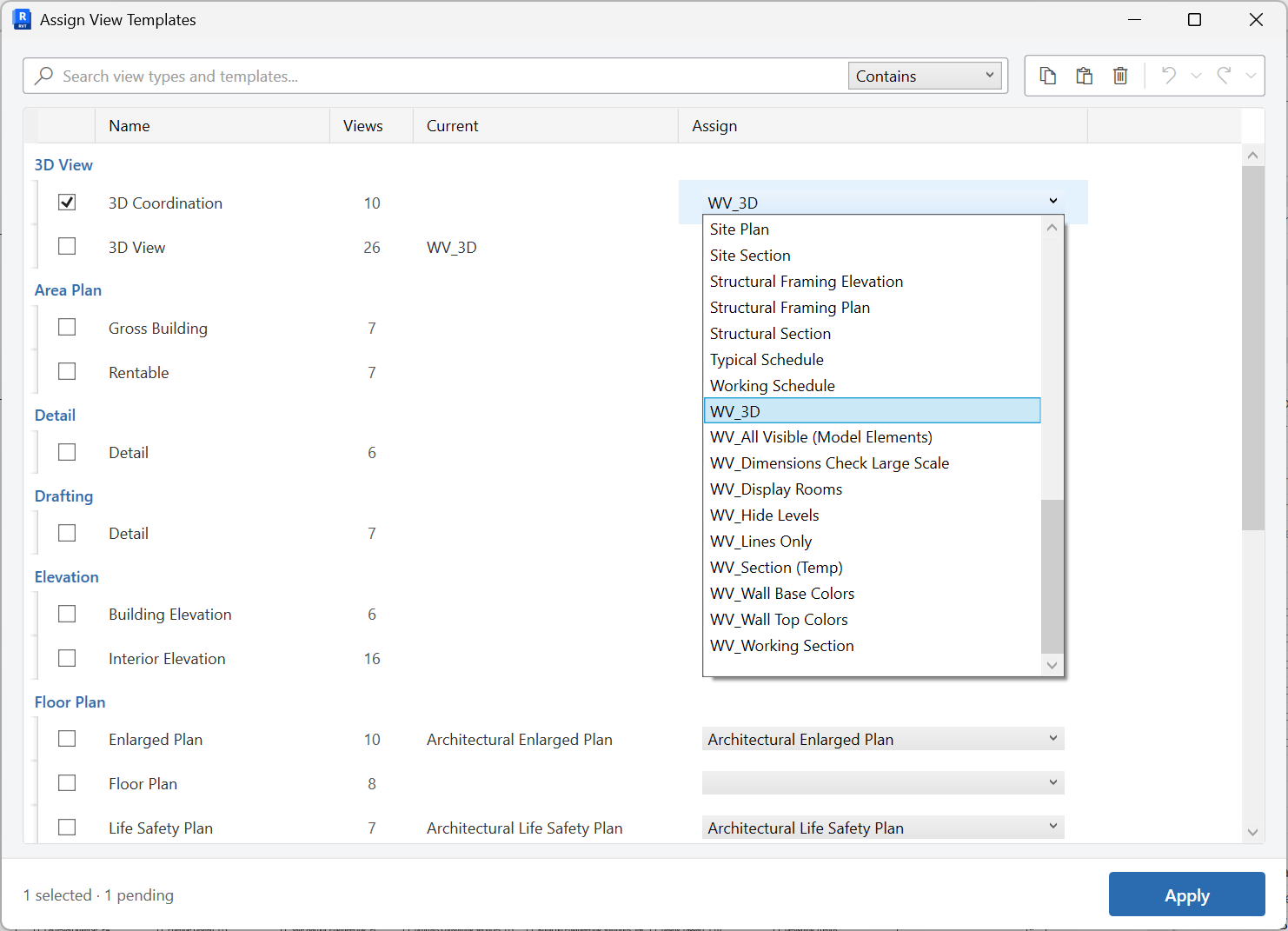
Map templates by view type
In the grid, choose which template each view type should use.
-
Apply
Commit the assignment so the selected views pick up the mapped templates.
Keep in mind
- Create the views first with Create Views, then lock graphics with this tool.
- Unused templates can be removed afterward with Purge View Setup.


