Override By Value
Color-map and override elements based on a parameter's values. Choose what to analyze, pick a parameter, preview the value buckets and counts, then isolate/apply colors.
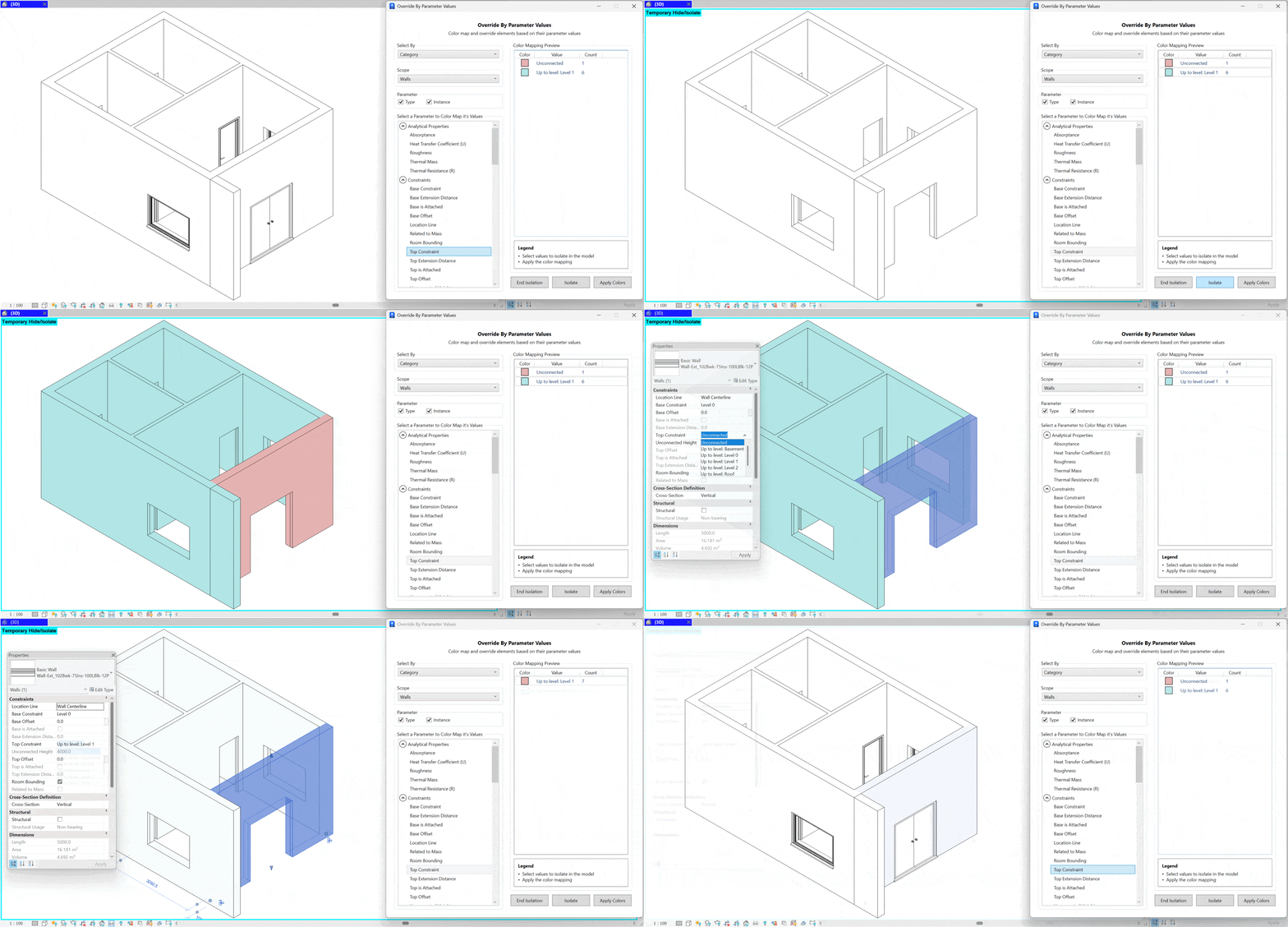
- Select By. Choose the filter mode (e.g., Category), then set the Scope (e.g., Walls) to limit which elements are analyzed.
- Parameter source. Pick whether to analyze Type and/or Instance parameters.
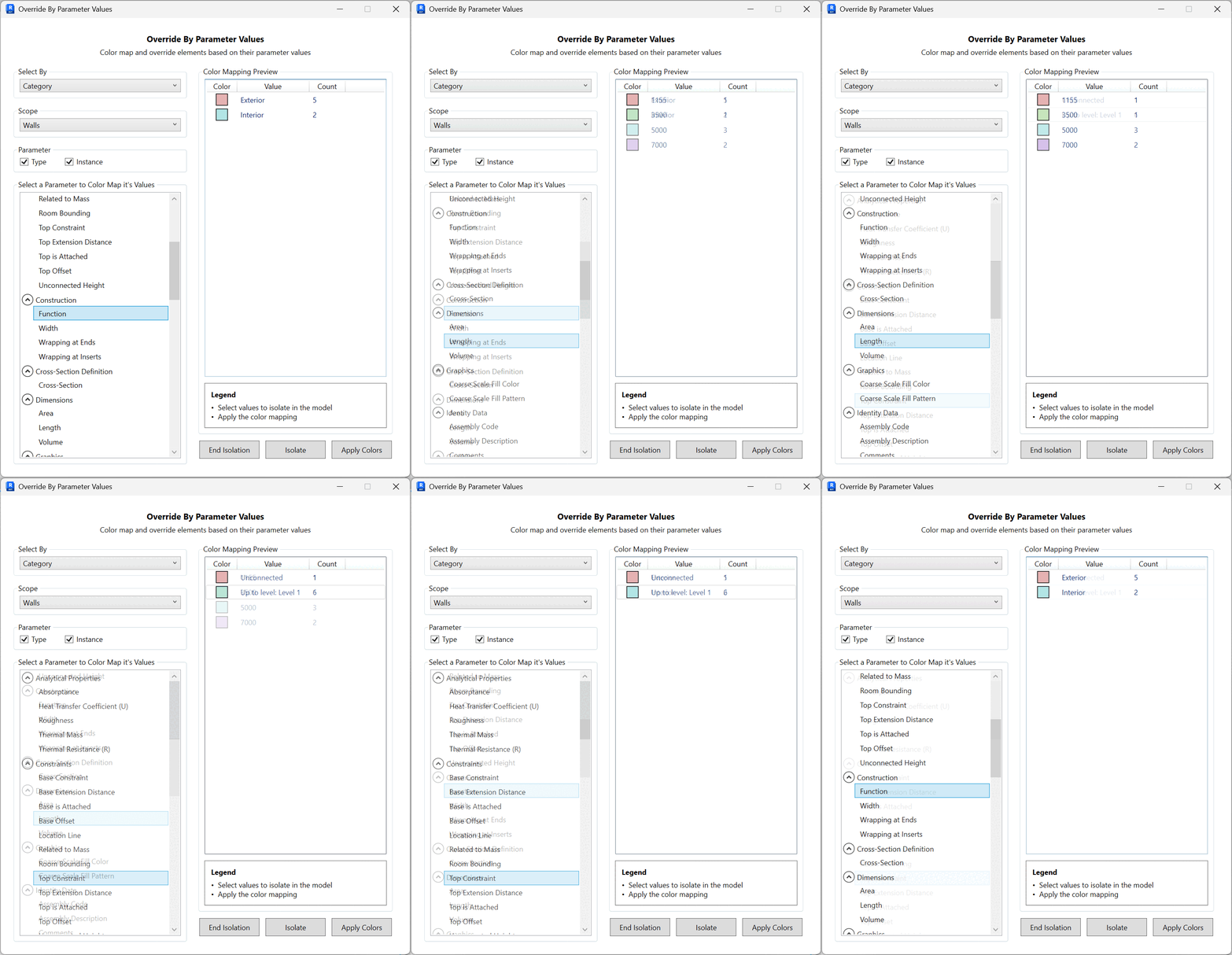
- Pick a parameter. From Select a Parameter to Color Map its Values, choose the parameter (e.g., Top Constraint). The right side builds a Color Mapping Preview with rows like:
- Color swatch
- Value (e.g., "Unconnected", "Up to level: Level 1")
- Count of elements with that value
- Isolate or apply colors.
- Isolate: isolates elements matching the selected value rows so you can inspect them in the active view.
- Apply Colors: applies temporary graphic overrides per value bucket (using the preview colors) to visually differentiate elements.
- End Isolation: restores the view after an isolation session.
- Work interactively. While the tool is open, you can edit the model (e.g., change constraints or fix issues). As you change parameter values, the counts and value buckets in the preview reflect the current model state when refreshed or when you re-run isolate/apply colors.
Click the Clear Overrides button to remove color overrides