
Visualizer
Isolate Warnings
Review model warnings, then select, temporarily isolate, or color the failing elements in the active view.
When to use it
Use this for QA before issue, after a consultant sync, or whenever Revit’s Warnings dialog is too long to work from.
Why it exists
The native Warnings dialog lists text. This tool lets you see the elements, isolate them, color them, and watch status change to Resolved as you fix the model with the window still open.
How to use it
-
Open Isolate Warnings
On the ✚ Annon App tab, click Isolate Warnings.
-
Choose warning types
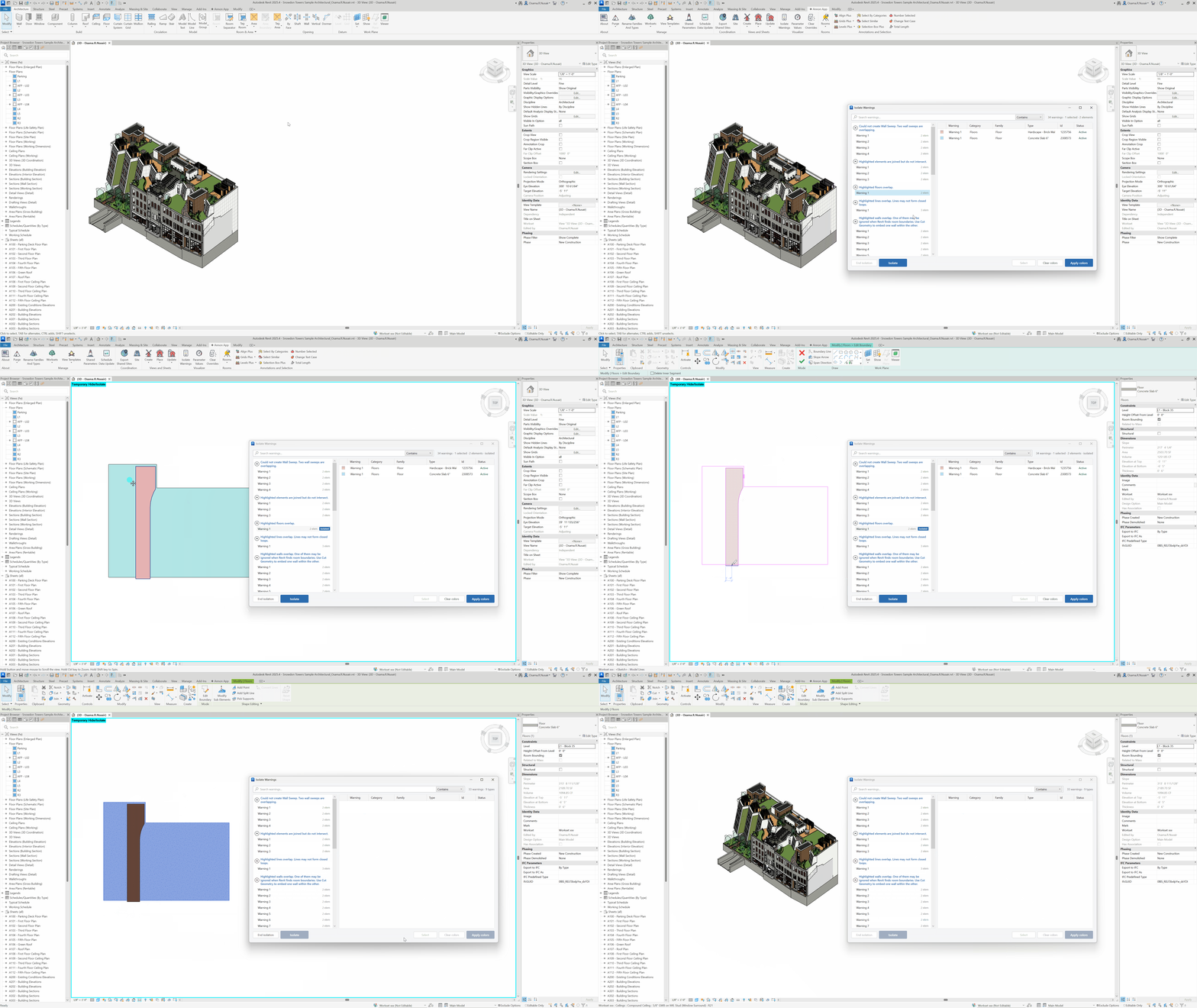
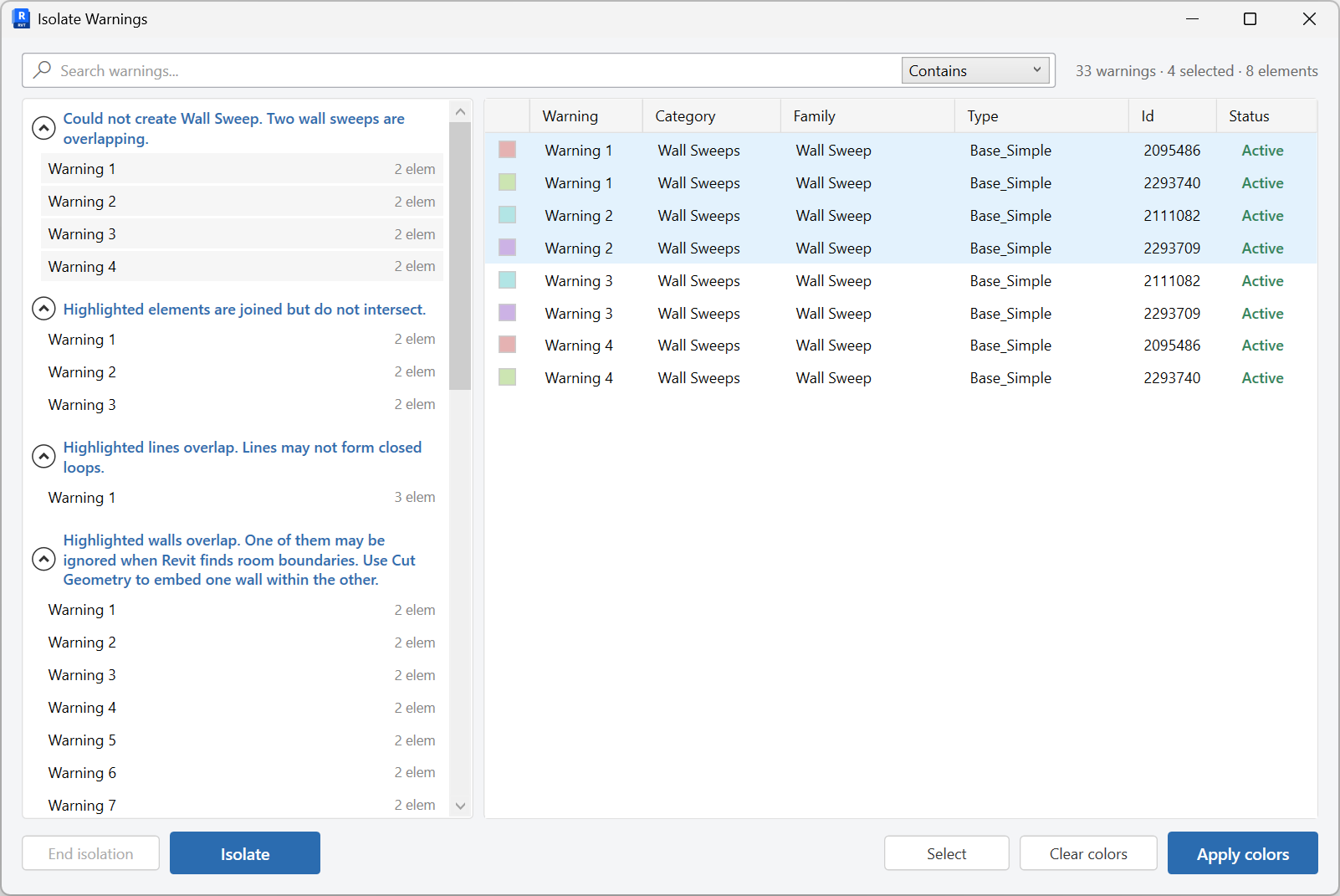
Search and group on the left, then select the warning types (or individual warnings) you want to inspect.
-
Inspect failing elements
The right pane lists the elements. Use Select to pick them in Revit, Apply colors to tint them in the view, or Isolate to hide everything else.
-
Fix with the window open
Edit the model while the tool stays up. Status badges update as warnings resolve.
-
End isolation
Restore the view when you are done. Click Clear Overrides on the ribbon if colored overrides should come off too.
Keep in mind
- Work in a graphical view (plan, section, 3D). Browser-only selection is ignored by the visualizer tools.
- Colors are graphic overrides - remove them with Clear Overrides.
Related tools
 Parameter Values
Browse elements by parameter value in this view or the entire project, then select, isolate, color, or edit those values.
Parameter Values
Browse elements by parameter value in this view or the entire project, then select, isolate, color, or edit those values.
 Clear Overrides
Clear graphic overrides on all elements in the active graphical view.
Clear Overrides
Clear graphic overrides on all elements in the active graphical view.
 Select Similar
Select elements that match a picked sample by category, family, or type, in this view or the entire project.
Select Similar
Select elements that match a picked sample by category, family, or type, in this view or the entire project.