Purge DWG Imports
Remove imported DWG files you no longer need to keep the model lightweight. Use the search to find imports, select them, then purge.
- Filter. Use the search box to narrow the list by DWG file name.
- Select imports. Check the boxes for the imported DWGs you want to delete.
- Purge. Click Purge to remove the selected imports. The button enables only when at least one import is selected.
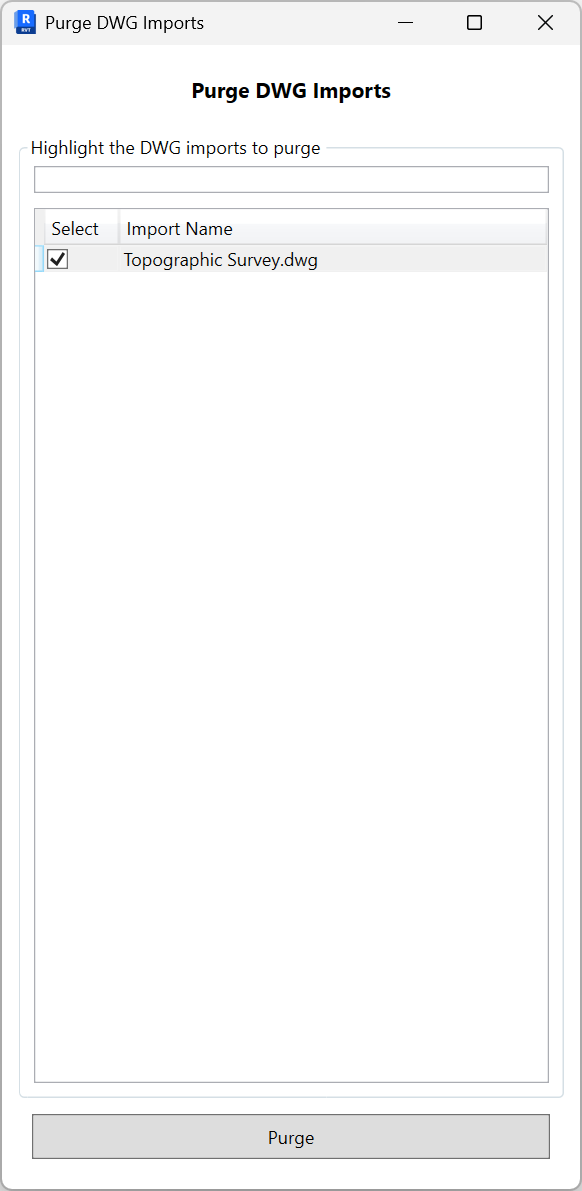
Notes: This action affects imported DWGs only; linked CAD files are not listed. Use Revit Undo to revert if needed.