Select By Parameter
Select model elements that share a parameter value with a chosen source element. Keep this window open and continue interacting with Revit-pan/zoom, change selection, or undo-then run the selection again.
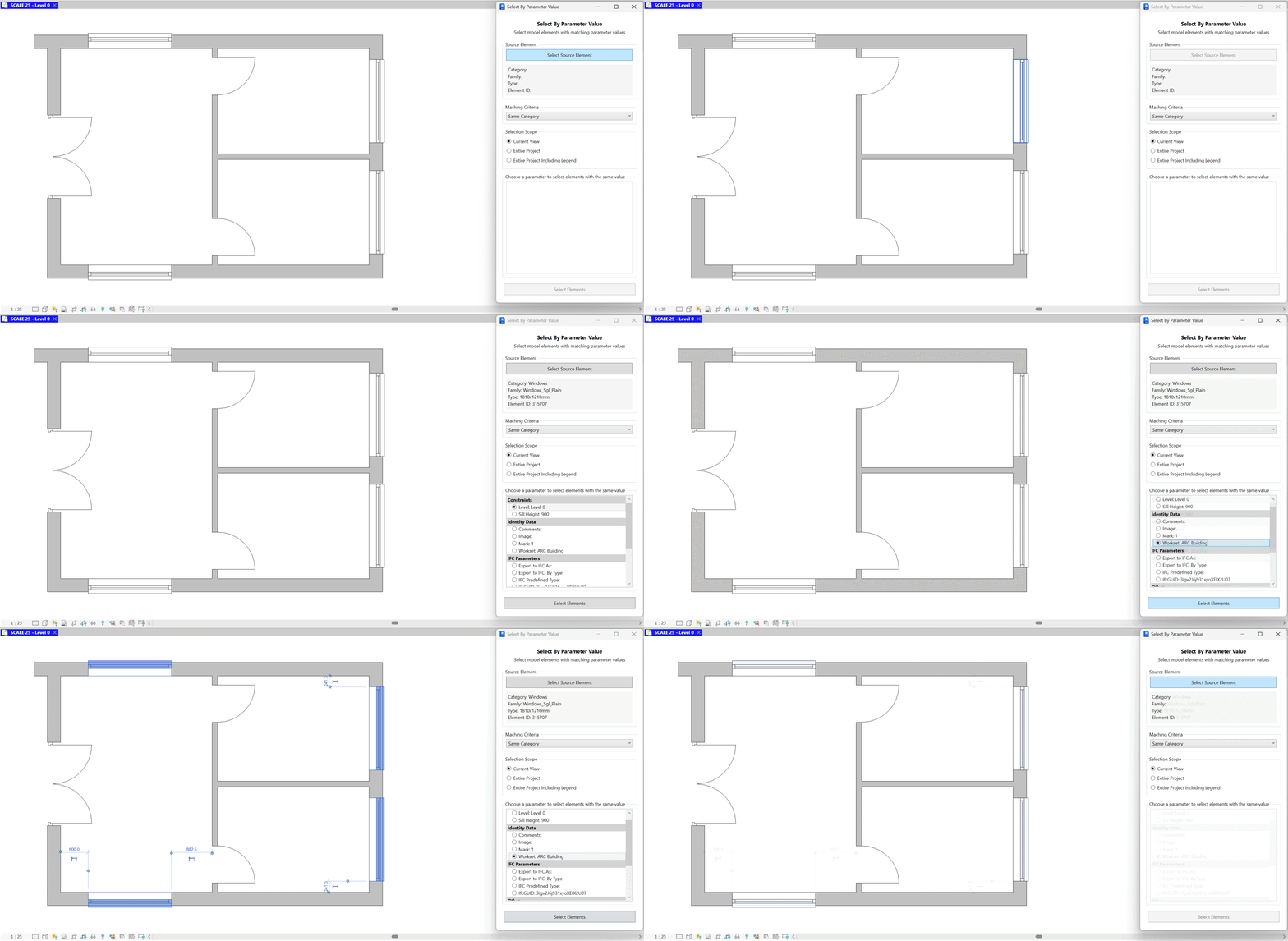
- Select Source Element. Click Select Source Element and pick an element. Its Category, Family, Type, and Element ID are displayed for confirmation.
- Matching Criteria. Choose how to constrain candidates (e.g., Same Category) before comparing parameter values.
- Selection Scope. Limit the search to Current View, Entire Project, or Entire Project Including Legend.
- Pick the parameter/value to match. From the grouped list (e.g., Identity Data, IFC Parameters, Other), select the parameter. The tool uses the source element's current value (e.g., Workset: ARC Building).
- Select Elements. Click Select Elements to select every candidate element in scope whose chosen parameter equals the source element's value.
- Refine and repeat. Change the source, adjust criteria/scope, or choose a different parameter and run Select Elements again.

Notes: Only elements with the chosen parameter (and a comparable value) are considered. Read-only or missing parameters are skipped.