Parameters Match
Copy parameter values from a source element to target elements for the parameters you select. Keep this window open and continue interacting with Revit while the tool is active-pick the source, choose parameters, then select targets and apply.
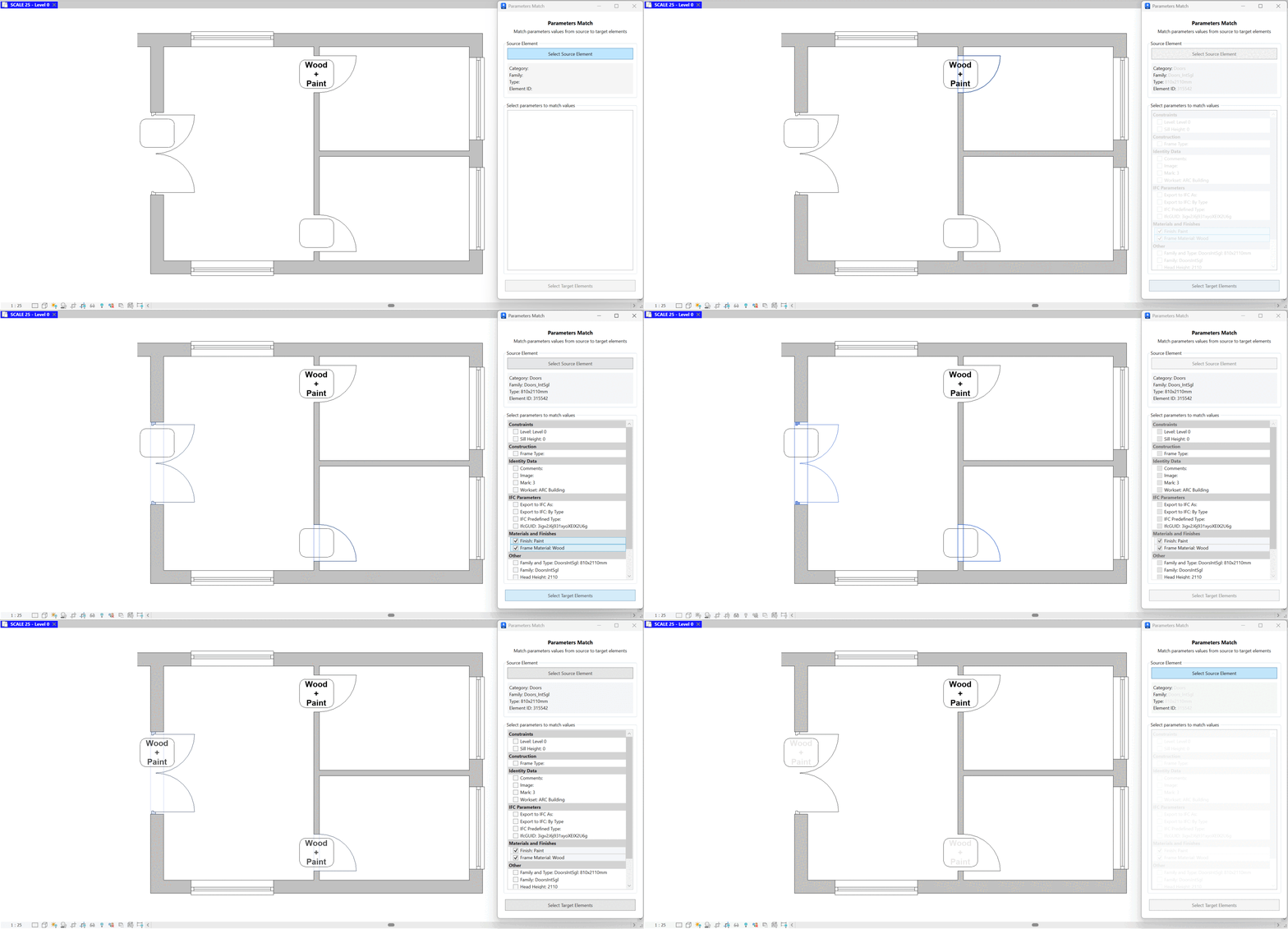
- Select Source Element. Click Select Source Element and pick an element in the model. Its Category, Family, Type, and Element ID display for confirmation.
- Choose parameters to match. From the list, select the parameters whose values you want to copy from the source (e.g., Mark, Comments, custom parameters). Only writable parameters are applied to targets.
- Select Target Elements. Click Select Target Elements and choose one or more elements in Revit. You can pan/zoom or adjust selection while the tool remains open.
- Apply. The chosen parameter values from the source are written to all selected targets. Existing values are overwritten for the selected parameters only.
- Repeat and undo. You can run multiple passes with different sources or parameters. Use Revit Undo to revert the last change.
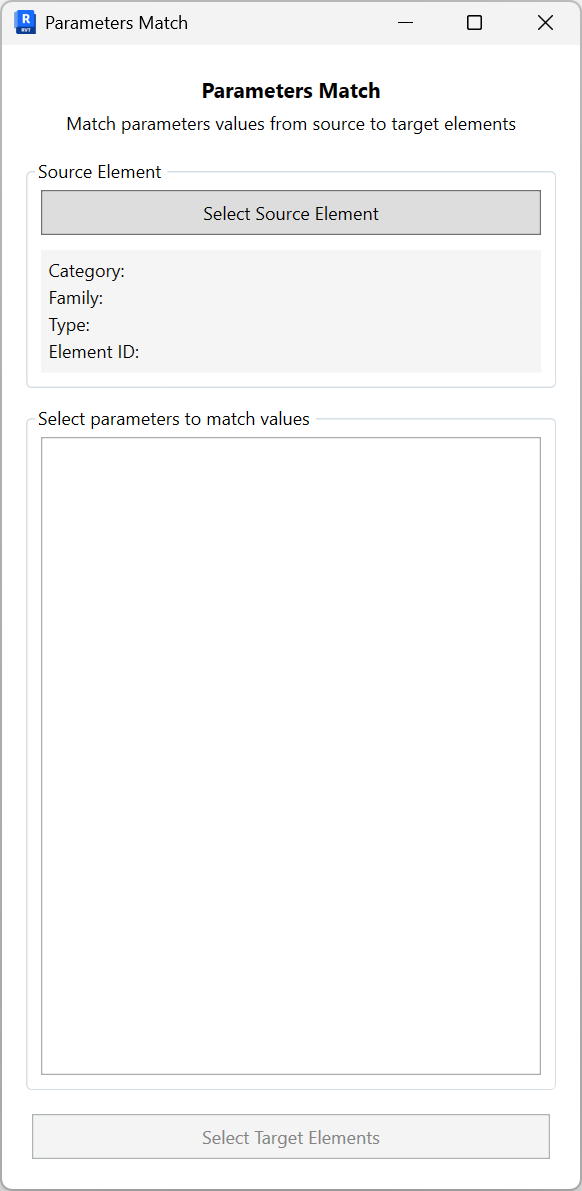
Notes: Works with instance parameters.