
Annotations and Selection · Levels Plus
Levels Match
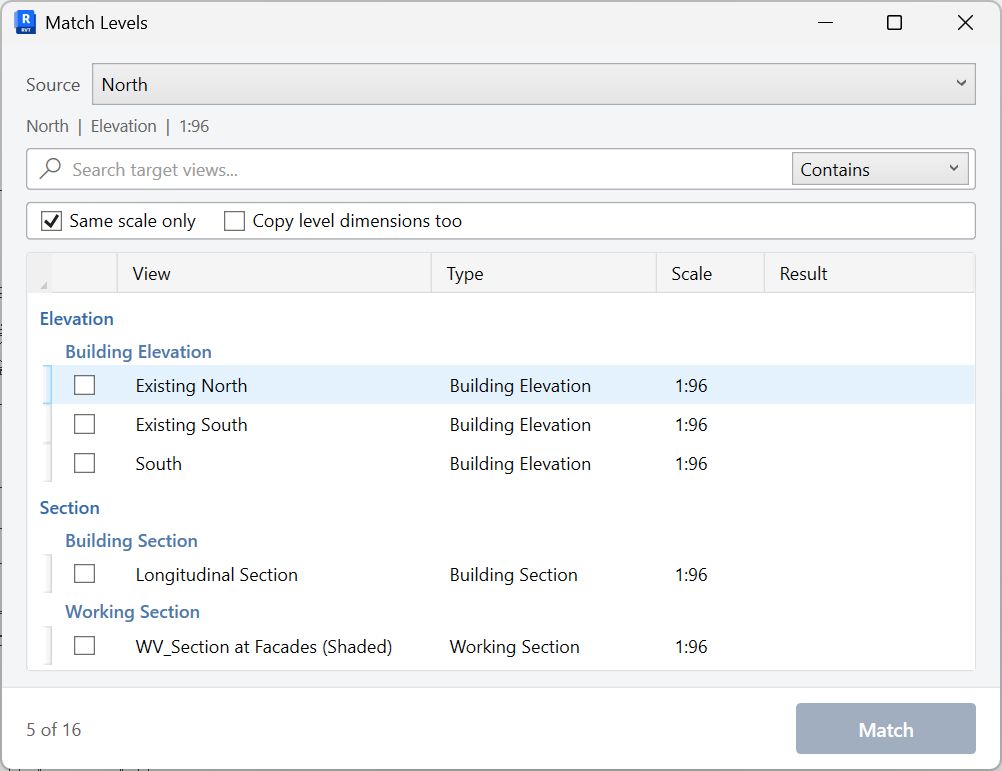
Copy level extents from a source view to other views, optionally including level dimensions.
When to use it
Use this when elevations and sections should show the same level crop after you set one view correctly.
Why it exists
Mismatched level lines across related elevations make the set look unfinished and can hide a story.
How to use it
-
Open Levels Match
On the ✚ Annon App tab, open Levels Plus and choose Levels Match.
-
Pick the source view
Choose the elevation or section whose level extents are correct.
-
Select targets
Optionally limit to Same scale only.
-
Match
Copy extents, and copy level dimensions if that option is on.
Keep in mind
- This mirrors Grids Match for levels.
- Set heads with Levels Head before or after matching extents.


