
Annotations and Selection · Grids Plus
Grids Dimensions
Place dimensions between parallel grids for the selection or the current view.
When to use it
Use this when a plan needs a grid string and you do not want to pick every grid pair by hand.
Why it exists
Grid dimension strings are repetitive and easy to miss a bay. This places them with the dimension style you choose.
How to use it
-
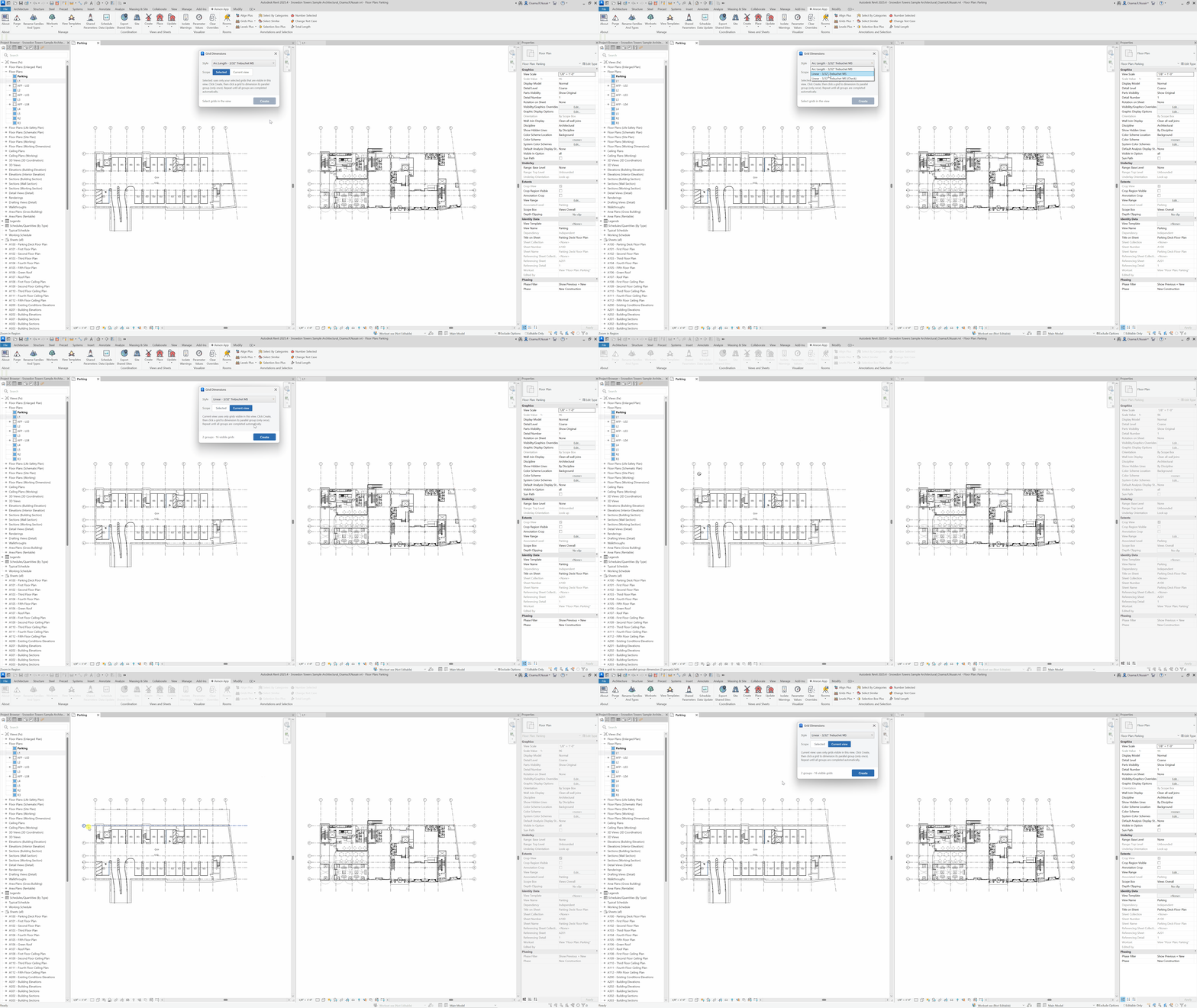
Open Grids Dimensions
On the ✚ Annon App tab, open Grids Plus and choose Grids Dimensions.
-
Choose the set
Work on selected grids or all grids in the current view.
-
Pick a dimension style
Use the office grid dimension type.
-
Place
Create dimensions between parallel grids.
Keep in mind
- Match extents first with Grids Match if other views should receive the same string via the copy-dimensions option.
- Level strings use Levels Dimensions.
Related tools
 Grids Match
Copy grid extents from a source view to other views, optionally including grid dimensions.
Grids Match
Copy grid extents from a source view to other views, optionally including grid dimensions.
 Levels Dimensions
Place dimensions between levels for the selection or the current view.
Levels Dimensions
Place dimensions between levels for the selection or the current view.
 Total Length
Show the total length of the current selection for model lines, detail lines, and wall centerlines.
Total Length
Show the total length of the current selection for model lines, detail lines, and wall centerlines.